Your phone serves as your lifeline to friends, family, and work. When your Globe SIM card stops working correctly, that sudden loss of connection brings your day to a grinding halt. You might stare at a “No Service” message, wait endlessly for a simple web page to load, or struggle to get your device to recognize the SIM card at all.
These network hiccups happen to almost everyone at some point. The good news is that you rarely need a technical background to fix them. Most connectivity problems stem from simple software glitches or minor hardware misalignments that take only a few minutes to resolve.
In this comprehensive guide, we will walk you through the most common problems users face with their Globe SIM cards. You will learn actionable, step-by-step troubleshooting tips for signal drops, slow internet, undetected SIM cards, and SIM registration hurdles. By the end of this post, you will know exactly how to restore your connection and maintain your SIM card for optimal performance.
Dealing with “No Signal” or “No Service”
Losing your cellular signal completely is one of the most frustrating issues you can encounter. When your phone displays “No Service” or shows zero signal bars, it means your device cannot communicate with the nearest Globe cell tower. Before assuming the worst, try these simple troubleshooting steps.
Toggle Airplane Mode
Sometimes, your phone simply loses its digital bearings and needs a quick reset of its network connection. Toggling Airplane Mode is the fastest way to force your phone to reconnect to the Globe network.
Swipe down from the top of your screen to access your quick settings panel. Tap the airplane icon to turn on Airplane Mode. Wait for about 30 seconds. This brief pause severs all wireless connections. Tap the icon again to turn Airplane Mode off. Your phone will now actively search for the strongest available Globe signal in your area.
Restart Your Device
If Airplane Mode does not restore your signal, a full device restart is your next best option. Smartphones act like miniature computers, and they occasionally experience background software crashes that interfere with network connectivity.
Power off your phone completely. Leave it off for at least one full minute before turning it back on. This process clears the temporary memory and allows the operating system to start fresh. In many cases, a simple reboot instantly brings your signal bars back to full strength.
Check for Network Outages
If you still have no signal after a restart, the problem might not be your phone at all. Globe occasionally performs system maintenance or experiences unexpected network outages in specific regions.
Ask a family member or friend who also uses a Globe SIM if they have a signal. If their phone shows “No Service” too, you are likely dealing with a localized outage. You can check the official Globe social media pages or the GlobeOne app (using a Wi-Fi connection) for announcements regarding service interruptions in your area.
Fixing a SIM Card That Is Not Detected
Another common issue occurs when your phone behaves as if the SIM slot is completely empty. You might see an “Insert SIM” or “SIM Card Not Detected” error message on your screen. This usually points to a physical connection problem between the card and your device.
Reinsert and Clean the SIM Card
Over time, dust and lint can work their way into your phone’s SIM tray. Even a microscopic layer of dirt can block the gold electrical contacts on the SIM card from communicating with your phone.
Turn off your phone completely. Use a SIM ejector tool to carefully open the SIM tray. Take the SIM card out and inspect the gold contacts for any visible dirt or smudges. Gently wipe the gold area with a clean, dry microfiber cloth. Avoid using water or harsh chemicals. Place the SIM card back into the tray, ensuring it sits perfectly flush, and power your phone back on.
Test the SIM in Another Device
If cleaning the SIM card fails to resolve the error, you need to isolate the source of the problem. You must figure out if the SIM card is broken or if your phone’s hardware is failing.
Borrow a compatible, unlocked smartphone from a friend or family member. Insert your Globe SIM card into their device. If their phone detects the SIM card and gets a signal, your phone’s SIM reader might require professional repair. If their phone also fails to detect the SIM card, your Globe SIM is likely damaged and needs a replacement.
Resolving Slow Mobile Internet Speeds
Sometimes your phone connects to the network, but the mobile data moves at a sluggish pace. Videos buffer endlessly, social media feeds refuse to refresh, and sending a simple photo takes minutes. You can usually speed things up by adjusting a few settings.
Check Your Network Mode Settings
Your phone might be clinging to a weak 3G or 4G signal instead of connecting to a faster network. You want to make sure your device automatically selects the best available connection type.
Open your phone’s settings menu and navigate to your network or cellular data options. Look for the “Preferred Network Type” or “Network Mode” setting. Make sure this is set to “5G/LTE/3G (Auto)” or the highest available option for your device. This allows your phone to utilize the fastest Globe network available in your current location.
Reset Your Network Settings
If your internet remains slow despite having a strong LTE or 5G signal, your phone’s saved network configurations might be corrupted. Resetting these settings clears out any messy data without deleting your personal files or photos.
Go to your device settings and search for “Reset Network Settings.” Keep in mind that confirming this action will erase your saved Wi-Fi passwords and Bluetooth pairings. After the reset completes, your phone will download fresh, clean network configurations directly from Globe.
Monitor Your Data Cap
Many mobile data promos come with fair use policies or specific data allowances. If you suddenly experience painfully slow internet after days of heavy usage, you might have exhausted your high-speed data allocation.
Open the GlobeOne app and check your current promo status. If you see that your data wallet is empty, your internet speed will be throttled until you register for a new promo or wait for your monthly postpaid data to refresh.
Overcoming SIM Registration Issues
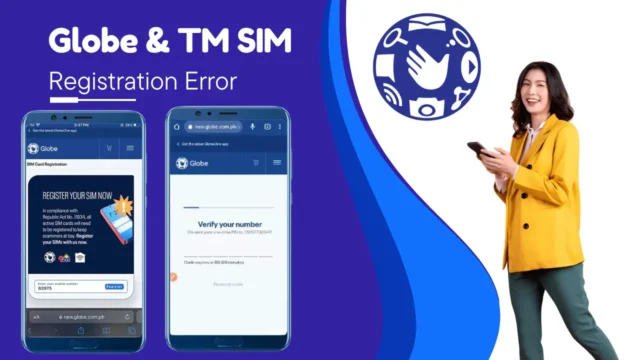
Philippine law requires all mobile users to register their SIM cards. Sometimes, users run into frustrating errors while trying to complete this mandatory process online.
Verify Your Registration Details
If the SIM registration portal rejects your application, double-check the information you entered. Make sure your name perfectly matches the government ID you uploaded. Ensure the ID photo is clear, well-lit, and completely legible. The automated system will reject blurry photos or cropped images that hide important details.
Clear Browser Cache or Use the GlobeOne App
Website glitches frequently cause registration failures. If the registration page freezes or fails to upload your selfie, the web browser on your phone might be the culprit.
Clear your mobile browser’s cache and cookies, then try loading the registration portal again. Alternatively, skip the web browser entirely and use the official GlobeOne.