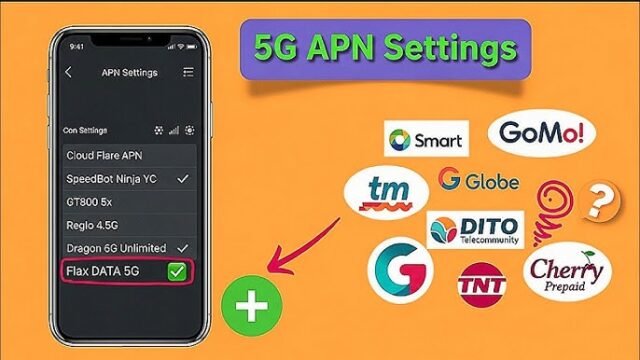
To access mobile internet on your Globe SIM card, you need to ensure that your phone’s APN (Access Point Name) settings are correctly configured. Here’s a step-by-step guide to set up your Globe SIM card internet settings:
Automatic Configuration
Most modern smartphones automatically configure the APN settings when you insert your Globe SIM card. If your internet isn’t working, you can request the settings via SMS:
- Text:
GOto 2951. - You’ll receive the internet settings via SMS.
- Save the settings and restart your phone.
Manual Configuration
If the automatic setup doesn’t work, you can manually configure the APN settings. Follow these steps:
For Android Devices:
- Go to Settings > Connections > Mobile Networks > Access Point Names.
- Tap Add or the “+” icon to create a new APN.
- Enter the following details:
- Name: Globe Internet
- APN:
internet.globe.com.ph - Proxy: Not set
- Port: Not set
- Username: Not set
- Password: Not set
- MCC:
515 - MNC:
02 - Authentication Type: None
- APN Type: default,supl
- APN Protocol: IPv4
- APN Roaming Protocol: IPv4
- Save the settings and select the new APN.
- Restart your phone.
For iOS Devices (iPhone):
- Go to Settings > Cellular > Cellular Data Network.
- Under Cellular Data, enter:
- APN:
internet.globe.com.ph - Username: Leave blank
- Password: Leave blank
- APN:
- Leave the other fields blank.
- Go back to Settings and restart your phone.
For Other Devices (e.g., Modems, Tablets)
- Access the device’s network settings.
- Look for APN Settings or Mobile Network Settings.
- Enter the same APN details:
- APN:
internet.globe.com.ph - Leave other fields blank unless required.
- APN:
Troubleshooting Tips
- Check Mobile Data: Ensure mobile data is turned on in your phone’s settings.
- Signal Strength: Make sure you have a strong Globe signal (4G/LTE preferred).
- Restart Your Device: After configuring the APN, restart your phone to apply the changes.
- Contact Globe Support: If the internet still doesn’t work, call Globe’s customer service at 211 (toll-free for Globe users).
With the correct APN settings, you’ll be able to enjoy seamless internet connectivity on your Globe SIM card!